RashTools
    Back to blog
    Utility

    How to Transfer Files Between Devices Without a Cable

    Move photos, PDFs and videos between phone, laptop and tablet with a QR code — no cable, no cloud account, no software.

    How to Transfer Files Between Devices Without a Cable

    Cables are the slowest part of moving files between your phone and your laptop. iPhone users need a Lightning-to-USB adapter that never seems to be where they left it, Android users get stuck in MTP mode on Windows, and everyone eventually gives up and emails the file to themselves. There is a much better pattern in 2026: upload once, scan a QR code, download on the other device.

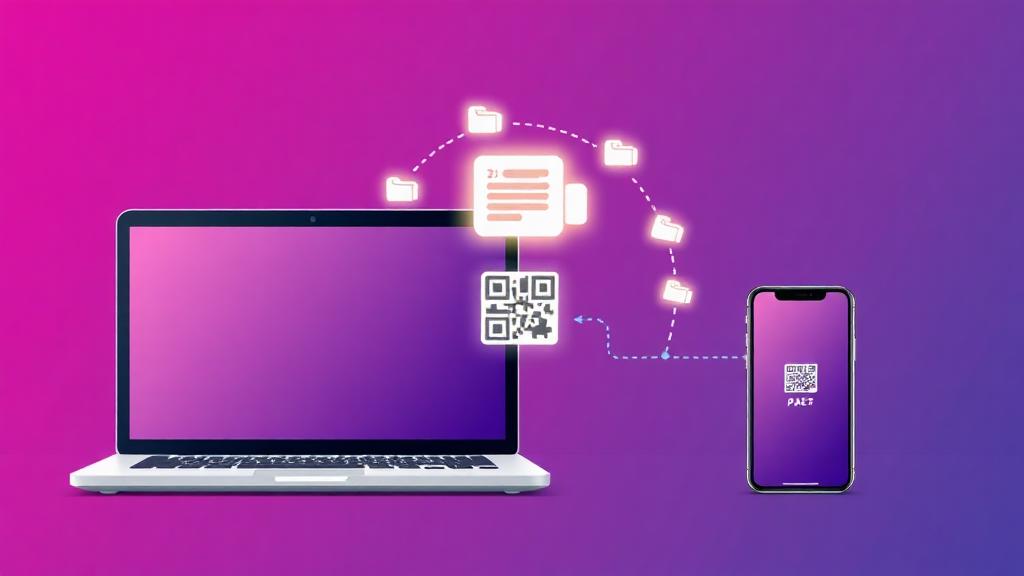
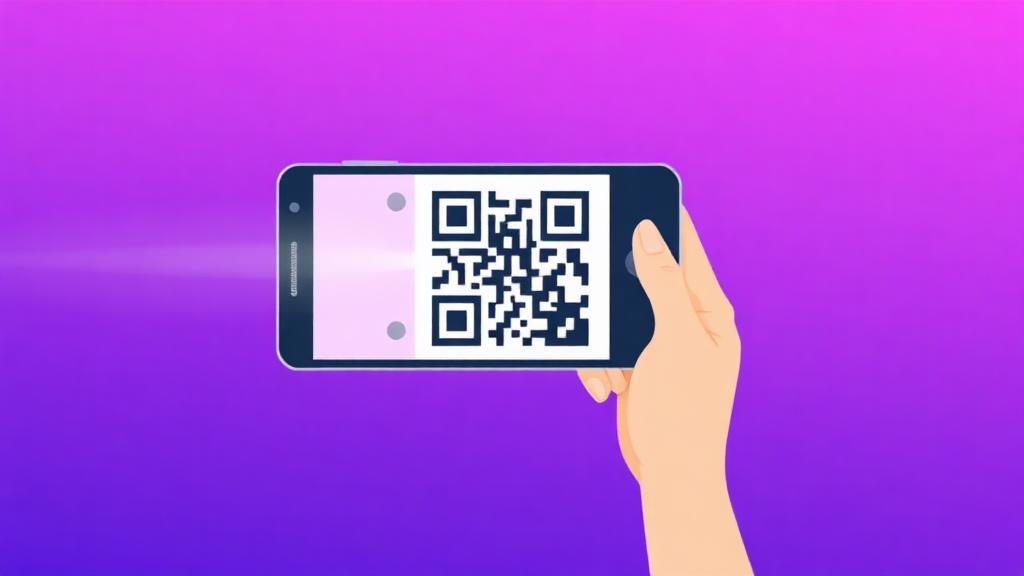
    Open the File Transfer tool on the device that already has the file, drop the files in, and hit Send. The tool generates a short link and a QR code within a couple of seconds. Point your other device's camera at the QR code, tap the notification, and the download starts immediately — no app install, no Bluetooth pairing, no iCloud, no Google account. It works the same across iOS, Android, Windows, Mac, iPad and ChromeOS because the whole thing is just a normal web page.

    The QR-code flow is especially useful for the common everyday cases: moving today's iPhone photos onto a laptop for editing, sending a signed PDF from a Mac to an Android phone before a meeting, getting a client's raw video off a phone into your editing software, or pushing a resume from a laptop to a phone right before an interview. Because the link expires (choose one hour for these quick transfers), you can safely dismiss it afterward without cleaning anything up.

    For photo-heavy transfers, pre-process on the source device before uploading. iPhone photos in HEIC format can be run through the Image Converter into JPG or PNG so they open natively on Windows. Large screenshots go through Compress Images for a 3–5× size cut with no visible loss. If you are sending a stack of pictures to a printer or client, use Merge Images to build a single collage or Image to PDF to bundle them into one clean file that is easier to hand off.

    One more trick for constant device-hoppers: bookmark the File Transfer page on both devices. Combined with the Password Generator (for a quick throwaway password) and the QR Generator (if you need to share a link to something other than a file), you effectively get a private, personal AirDrop that works between any two devices in the world — even between a friend's phone and your own laptop on completely different networks.
    Try the tool

    File Transfer

    Move photos, PDFs and videos between phone, laptop and tablet with a QR code — no cable, no cloud account, no software.

    Open File Transfer

    Frequently asked questions

    How do I move a file from my iPhone to my Windows laptop without a cable?

    Open File Transfer on the iPhone, upload the file, then scan the on-screen QR code with the laptop's camera app (or just type the short link). The file downloads straight to the laptop with no iTunes, iCloud or Windows driver in the loop.

    Does it work from Android to a Mac?

    Yes — same flow in reverse. Upload from Android, scan the QR with the Mac's camera or type the link into Safari. No Android File Transfer app, no adb, no cable.

    Can I use this instead of AirDrop between an iPhone and an iPad?

    AirDrop is faster when both devices are Apple and on the same Wi-Fi. File Transfer wins when the devices are on different networks, when one of them is not Apple, or when you want to keep the same link on hand for a few hours.

    What about iPhone photos that download as HEIC on Windows?

    Run them through Image Converter (HEIC to JPG or PNG) before uploading, or upload the HEIC directly and convert on the laptop side. Either way you end up with files Windows Photos can open natively.

    Do both devices need to be on the same Wi-Fi network?

    No. Everything goes through the public internet, so the sending device can be on 5G and the receiving device on home Wi-Fi. That is the main advantage over AirDrop and Nearby Share.

    Is there a size limit for phone-to-laptop transfers?

    Same 2 GB per-file cap as any File Transfer upload. For very large video files from a phone, trim first with the Video Trimmer or compress with Compress Video to keep upload times reasonable on mobile data.

    Can I transfer multiple files in one go?

    Yes. Drop several files onto the upload area and they are bundled into a single share link. The recipient downloads them one at a time from the same page.

    How do I make the QR code bigger for scanning across a room?

    The share screen already shows a large, high-contrast QR. If you need it even bigger — for example on a projector — pass the link through the QR Generator tool and print or fullscreen the result.

    Is it safe to transfer sensitive documents this way?

    Yes, if you add a password and pick a short expiry (1 hour is plenty for a same-room transfer). The link becomes useless the moment the expiry hits, and the password blocks anyone who intercepts the link.

    Can I use this to send a resume from my laptop to my phone before an interview?

    That is one of the best use cases. Upload the PDF on the laptop, scan the QR with the phone, download and open it in your phone's PDF viewer. Combine with Sign PDF beforehand if the resume needs a signature.

    Related articles