RashTools
    Back to blog
    Utility

    How to Use an Online Color Picker (HEX, RGB, HSL)

    Grab the exact HEX, RGB or HSL value of any color and build a clean palette in minutes.

    How to Use an Online Color Picker (HEX, RGB, HSL)

    By Sara Ahmed · Updated May 26, 2026 · 3 min read

    Designers, developers and marketers all live and die by color codes. Brand guidelines are written in HEX, CSS files in RGB or HSL, and print shops in CMYK. Picking the wrong format leads to a button that looks off-brand or a banner that prints with muddy colors, so having a quick way to grab the exact value of any color is essential.

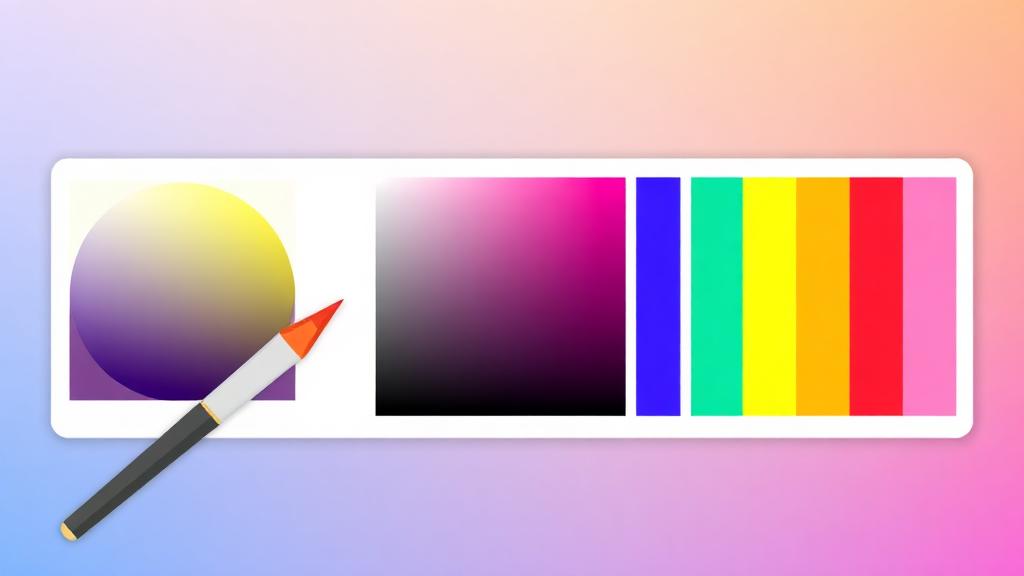
    The Color Picker on Rash Tools lets you pick any color, copy its HEX, RGB and HSL codes with one click and build a small palette as you work. Use the visual picker to explore variations, or paste a value to convert it between formats instantly. There are no accounts, no exports — just a fast tool you can pull up between Figma and your code editor.

    When building a palette, start with one primary color and generate two or three supporting shades by adjusting only the L (lightness) value in HSL. This keeps everything looking like it belongs to the same family. For UI work, also pick a near-black text color and a near-white background — pure black and white usually feel too harsh on screens.

    If you need to match a color from a screenshot or photo, drop the image into the Color Picker and click anywhere on it to read the exact value. That trick alone saves hours when you are trying to copy a competitor's button color, replicate a brand identity or extract a palette from an inspiring photograph.


    Try the tool

    Color Picker

    Grab the exact HEX, RGB or HSL value of any color and build a clean palette in minutes.

    Open Color Picker

    Frequently asked questions

    Can I pick a colour from an uploaded image?

    Yes. Drop an image and click any pixel to get its hex, RGB and HSL. Zoom lens follows your cursor for pixel-precise picks — useful for matching a brand colour from a screenshot.

    What formats does the picker output?

    Hex (#RRGGBB and #RRGGBBAA for alpha), RGB(A), HSL(A), HWB, LCH, and named CSS colours. Click any format to copy to clipboard.

    Does the picker support wide-gamut colours (P3, Rec.2020)?

    It reads sRGB colours from the image (that is what browsers store). P3 output tokens for CSS Color 4 are available in the advanced dropdown for design system work.

    How do I build a complementary or triadic palette?

    Enter a base colour and the palette generator shows complementary, triadic, tetradic and analogous variants with hex codes copyable in one click. Great starting point for a brand palette.

    Can I check colour contrast for accessibility?

    Yes. Pair any two colours and the tool shows the WCAG contrast ratio and passes/fails for AA (4.5:1) and AAA (7:1) at both text sizes.

    Is there an eyedropper that works outside the browser tab?

    In Chromium browsers, yes — the native EyeDropper API lets you sample any pixel on your screen including other windows. Firefox and Safari are limited to the uploaded image.

    How is this different from Photoshop's colour picker?

    Same core functionality. Photoshop adds Pantone/spot colour matching, which this tool does not. For web and UI work, the browser tool is faster because it stays inside your browser.

    Are uploaded images stored?

    No, they are loaded into a canvas in the tab and discarded when you close the page.

    Can I get colour names for a hex code?

    Yes — closest CSS named colour, closest RAL classic, and closest Pantone approximation are shown for any hex you enter. Approximations for Pantone are print-informational, not exact matches.

    How do I export a palette to Figma or Sketch?

    Copy the palette as CSS variables or JSON. Both Figma and Sketch import JSON tokens directly via plugins like Design Tokens.

    Related articles